API KEYS / ANTHROPIC
Get your Anthropic API key
The simplest provider fit. About two minutes, four steps.
Only needed if you picked the API-key option in setup. API billing is separate from Claude Pro.
- Create the account. Go to platform.claude.com and sign up (Google login works). This is the developer console — plainer than the chat app, don't let it scare you.
- Add billing first. In the console, open Organization settings → Billing and add a payment method. Buy a small amount of credit to start — $5 is plenty to see JARVIS working. Without this step your key will exist but nothing will run — this is the #1 thing that trips people up.
- Set your spending cap. In the same settings area (Billing / Rate limits), set the monthly spend limit to a maximum you're comfortable with. This is your guarantee the bill never surprises you.
- Create the key. Open Organization settings → API keys (platform.claude.com/settings/keys) and click "Create key". Leave Workspace on Default, name it "jarvis", leave Expires on Never, click Add. Copy the key immediately (it starts with
sk-ant-and is shown only once).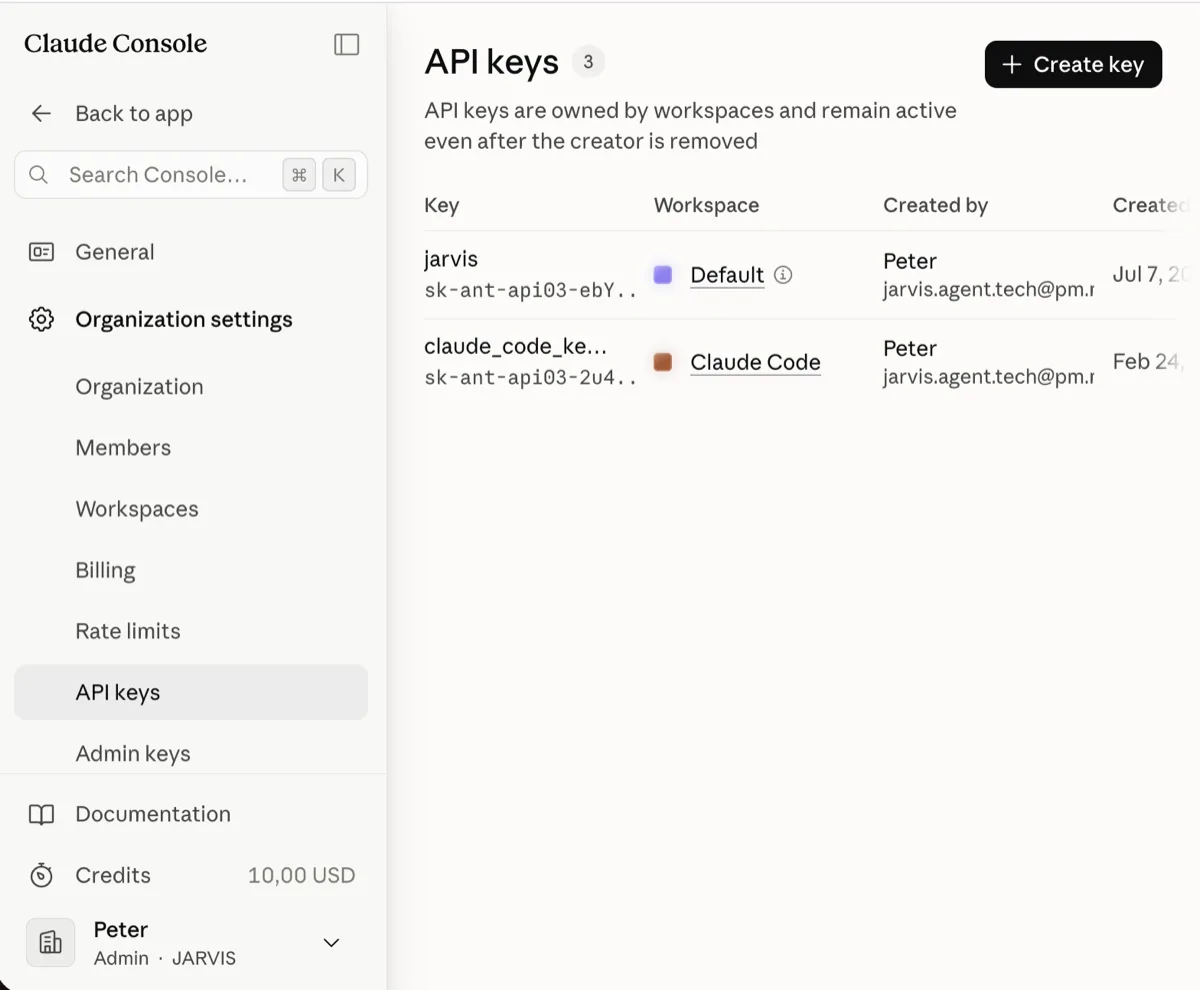
ORGANIZATION SETTINGS → API KEYS 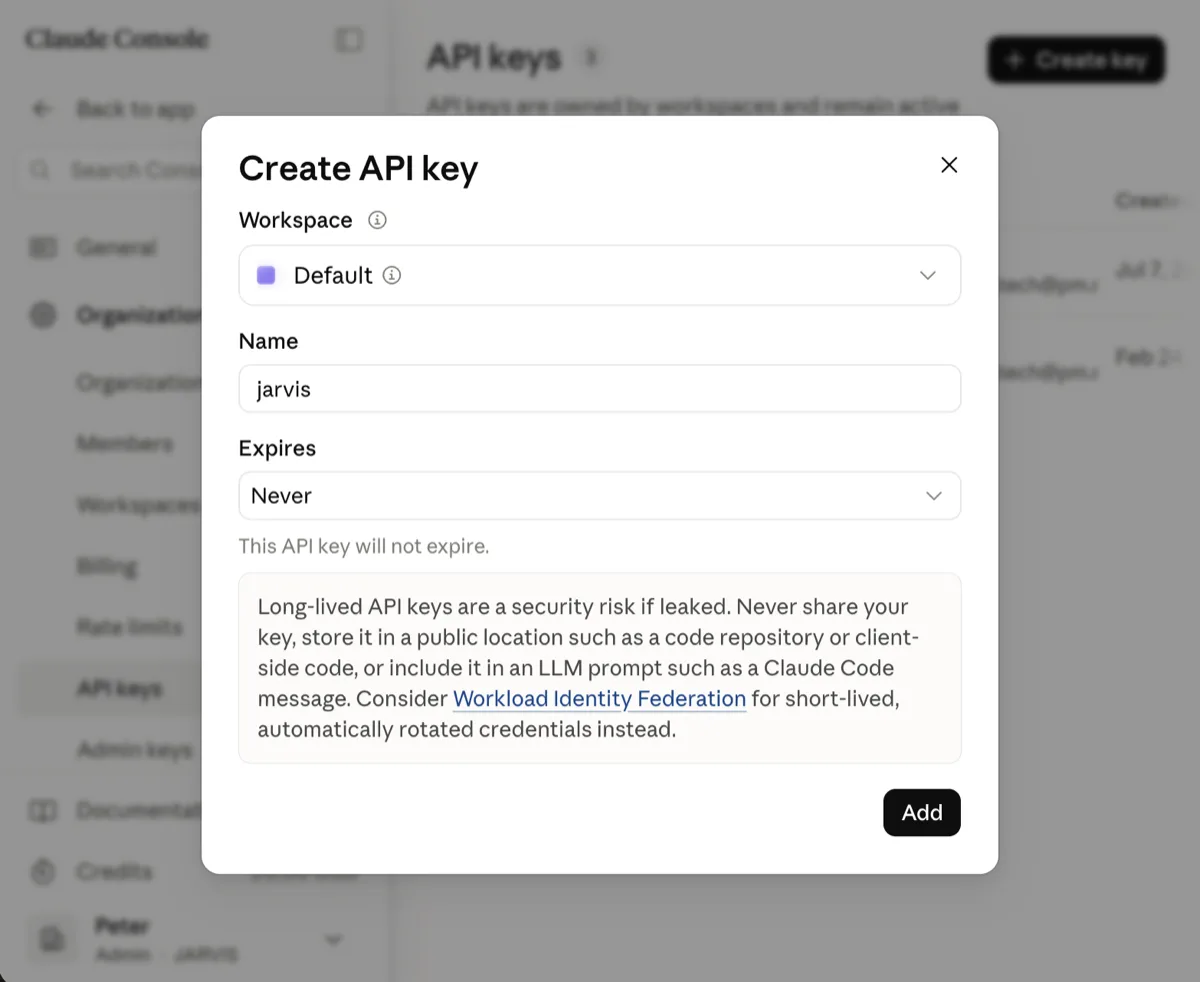
CREATE API KEY — WORKSPACE DEFAULT, EXPIRES NEVER 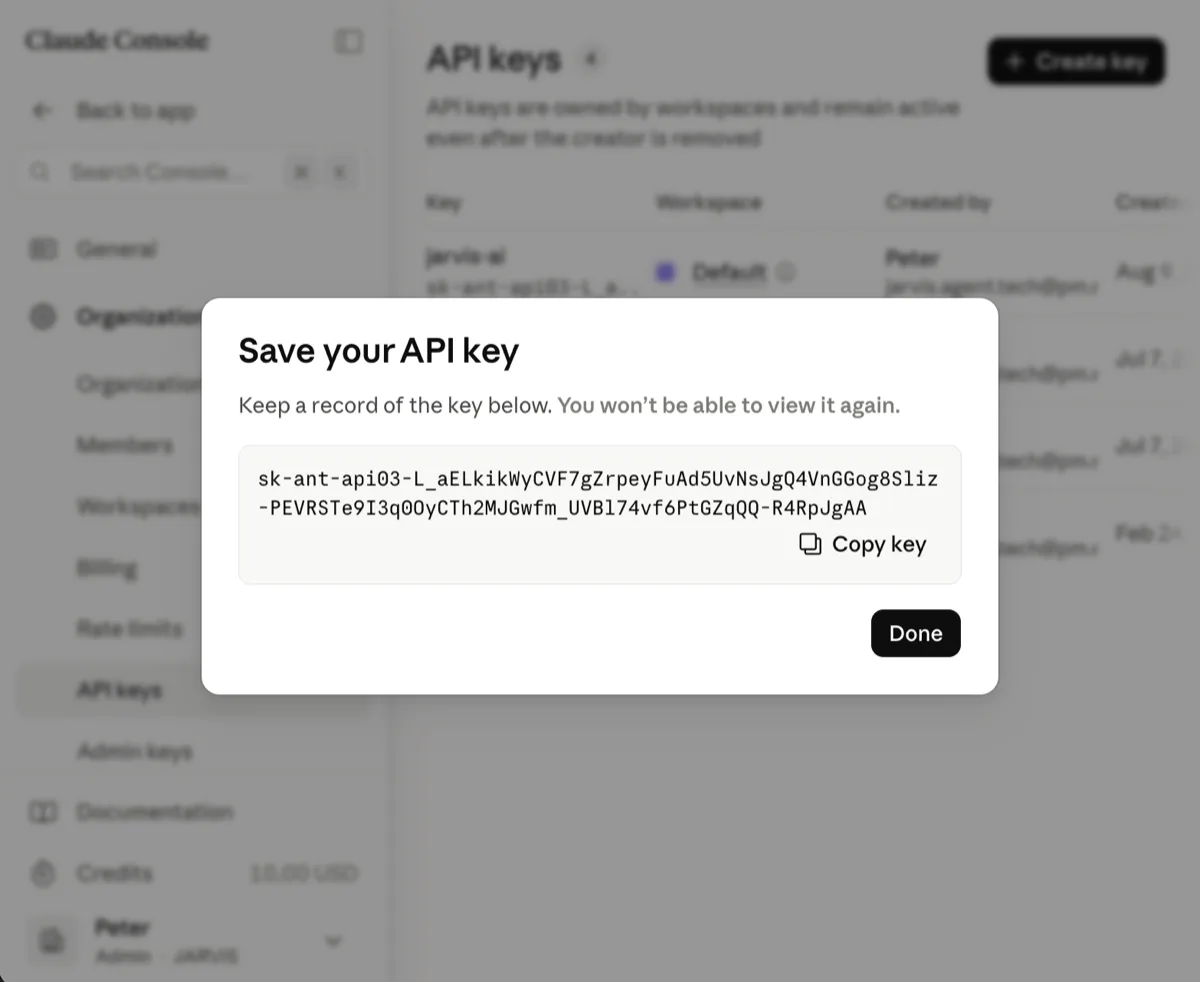
SHOWN ONCE — COPY IT NOW
Now open JARVIS setup, pick Anthropic, and use the PASTE button to drop the key in. You'll see a character count confirming the whole key landed.
If the wizard says the key doesn't verify: 90% of the time that's step 2 missing — the account has no billing/credits yet. Fix billing, then RETRY.
Stuck? Email jarvis.agent.tech@pm.me — a real person reads and answers.